
Expenses
View Expenses
The Expenses tab provides a comprehensive list of all clinical costs, which you can organize using filters for specific timeframes or by searching for specific categories. To record a new cost, click the + Add expense button and enter the Expense name, Category, and Date. You must specify the Cost (without VAT), select the Currency, and input the VAT to determine the total cost. Additionally, you can select a Vendor, write a Note, or upload Attachments before clicking Save. If you need to update an existing expense, click on the entry in the list, modify the details in the Edit expenses window, and click Save.
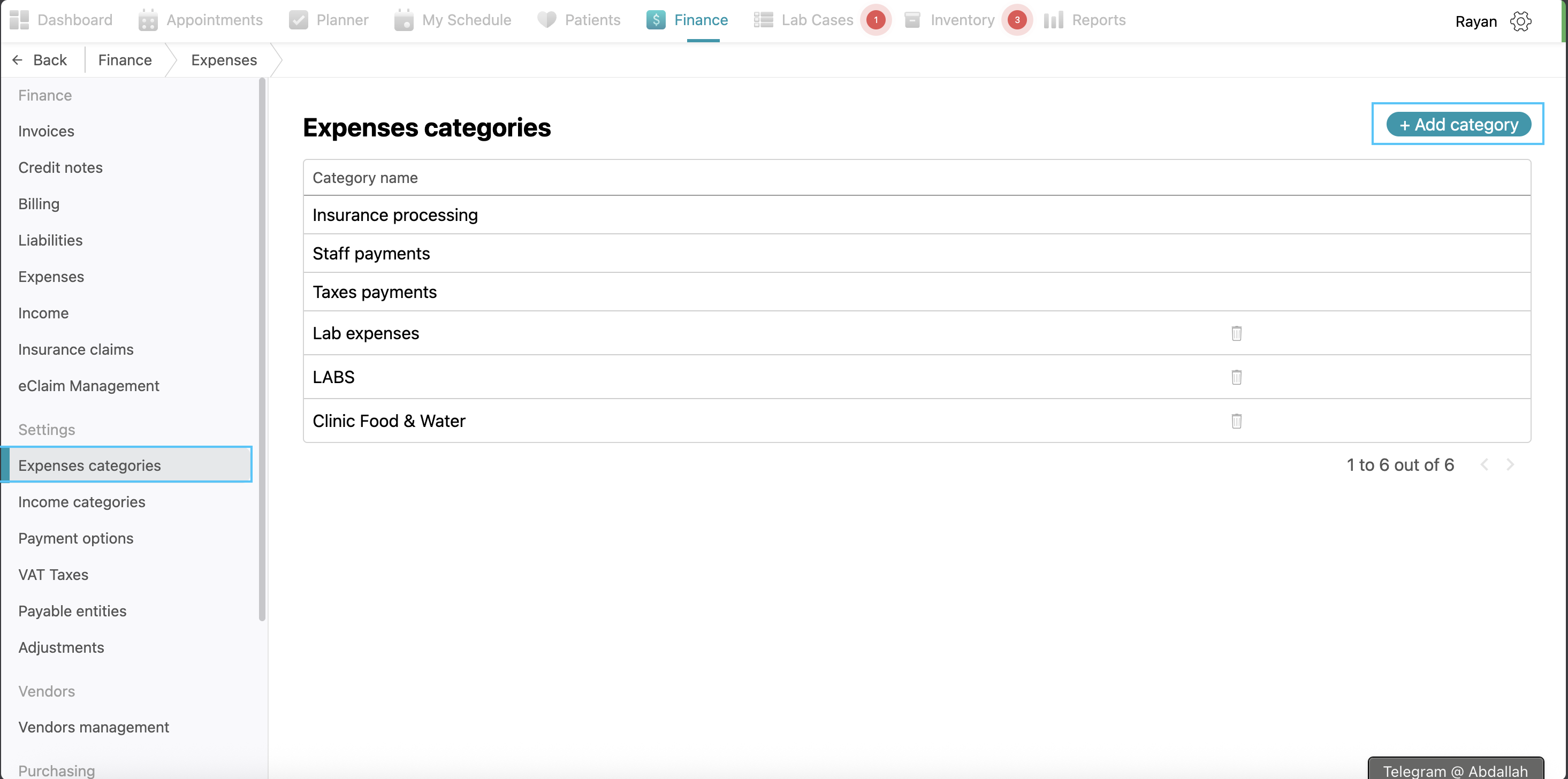
Expenses Categories
You can manage how your clinic's costs are grouped through the Expenses categories tab. To add a new grouping, click the + Add category button, enter the name, and click Save. To rename an existing category, click on the category name in the list, edit the text, and click Save.
No Comments