
My Schedule tab (Medical)
As a doctor, if you want to view your appointments schedule for a specific time, simply click on the 'My Schedule' tab. You can see all your appointments, which are displayed as follows:
-
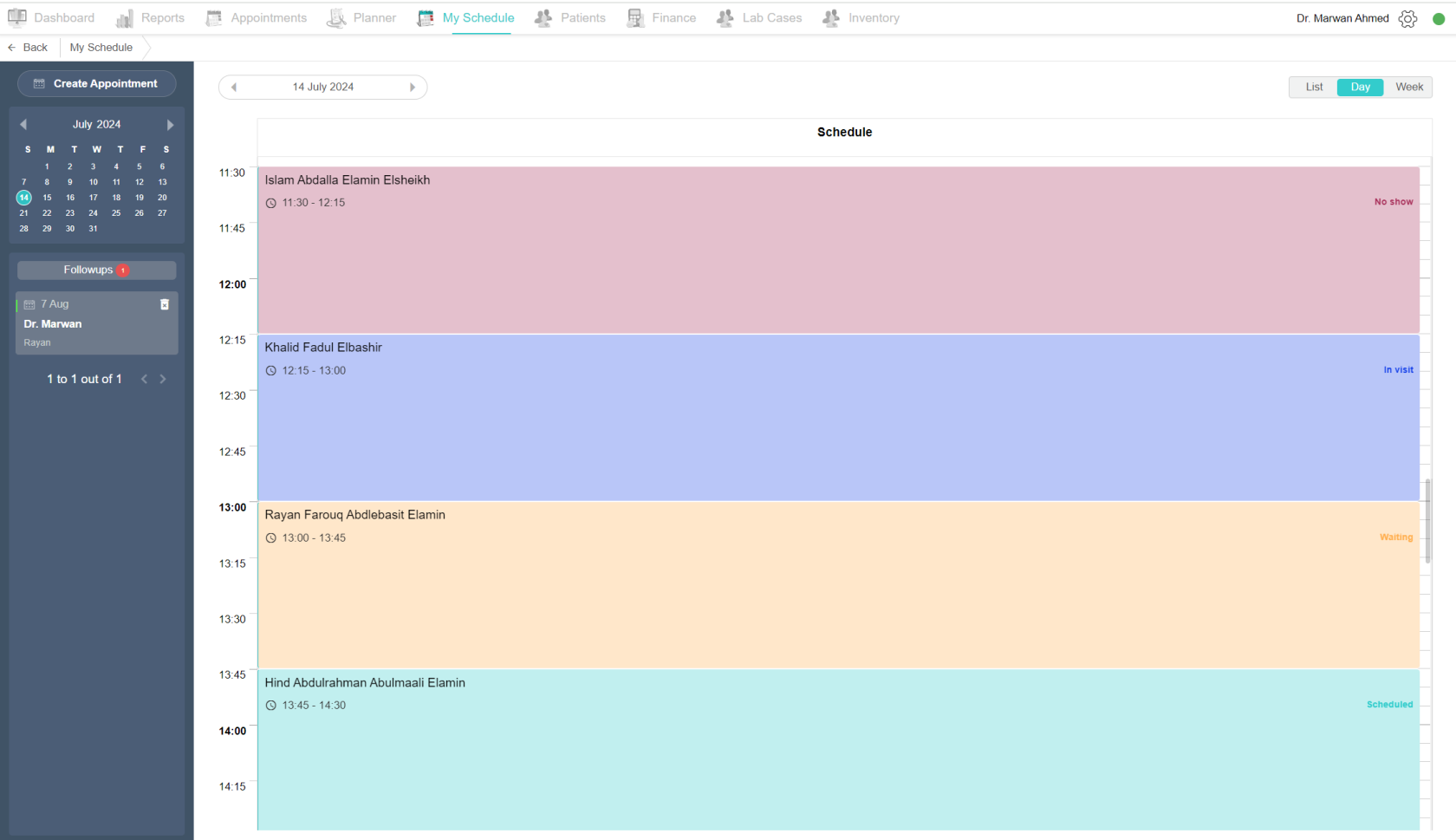
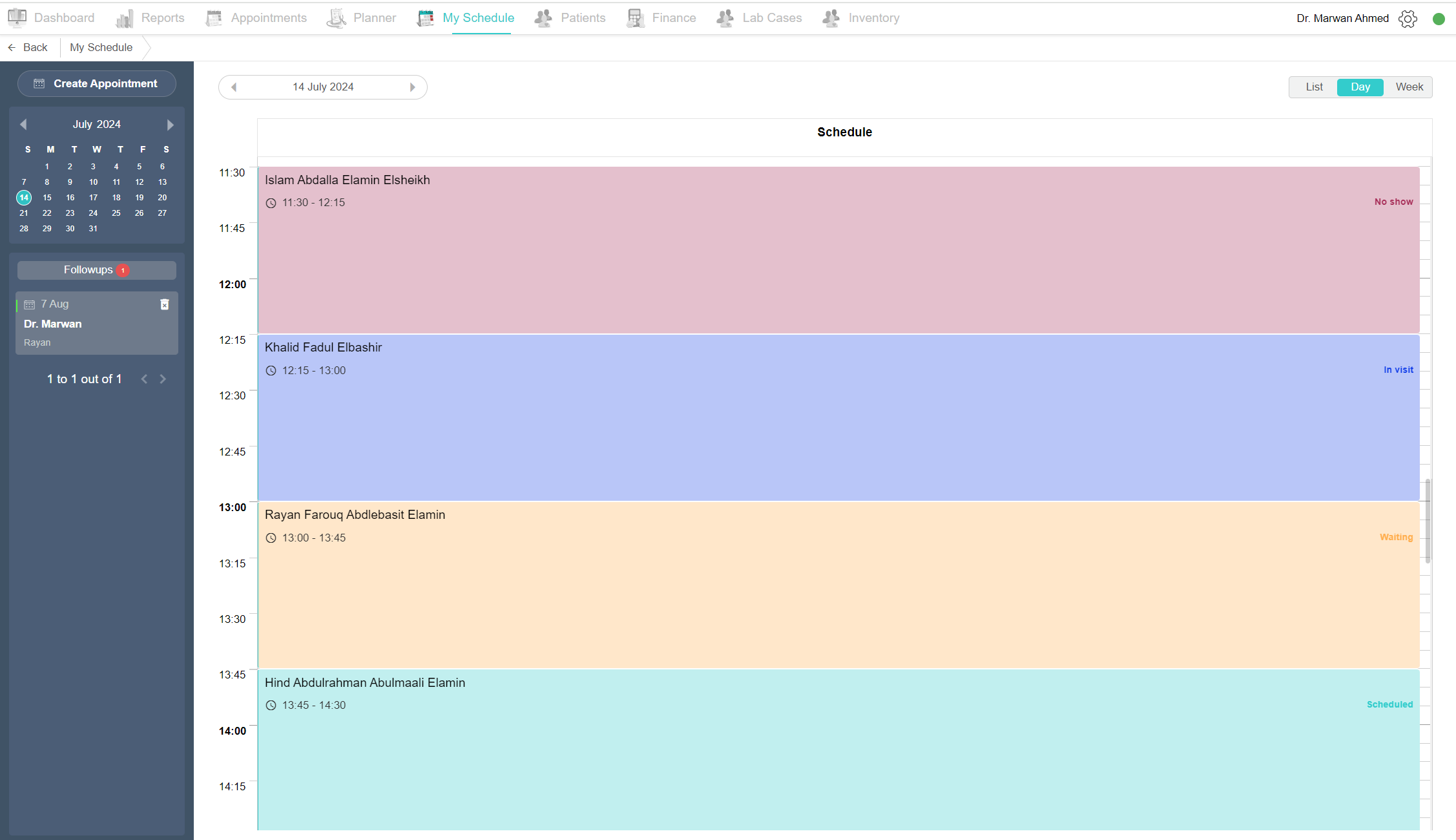
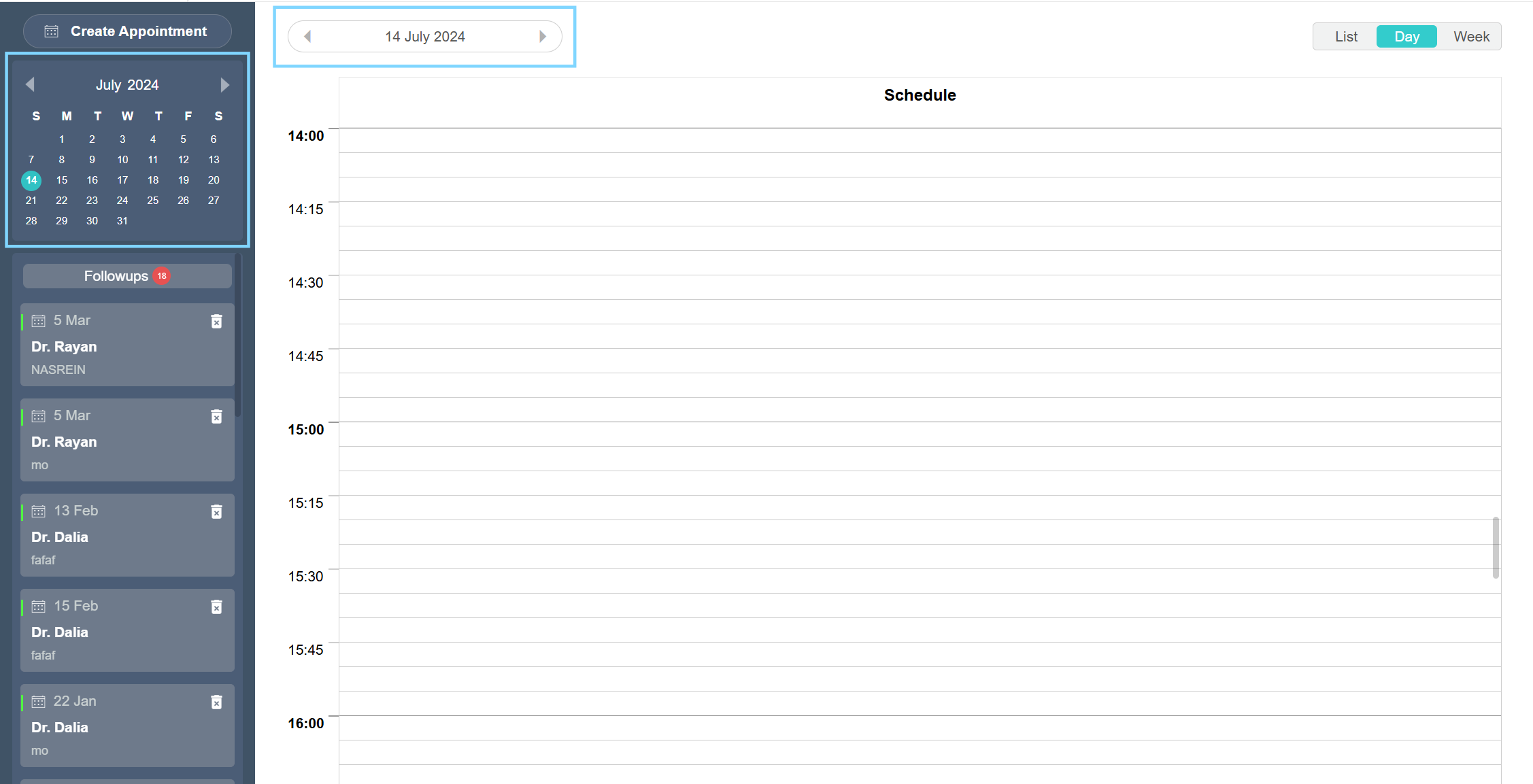
Day: By clicking on the 'Day' button at the top left, you will see all the appointments for today or for a specific day you select from the calendar.
-
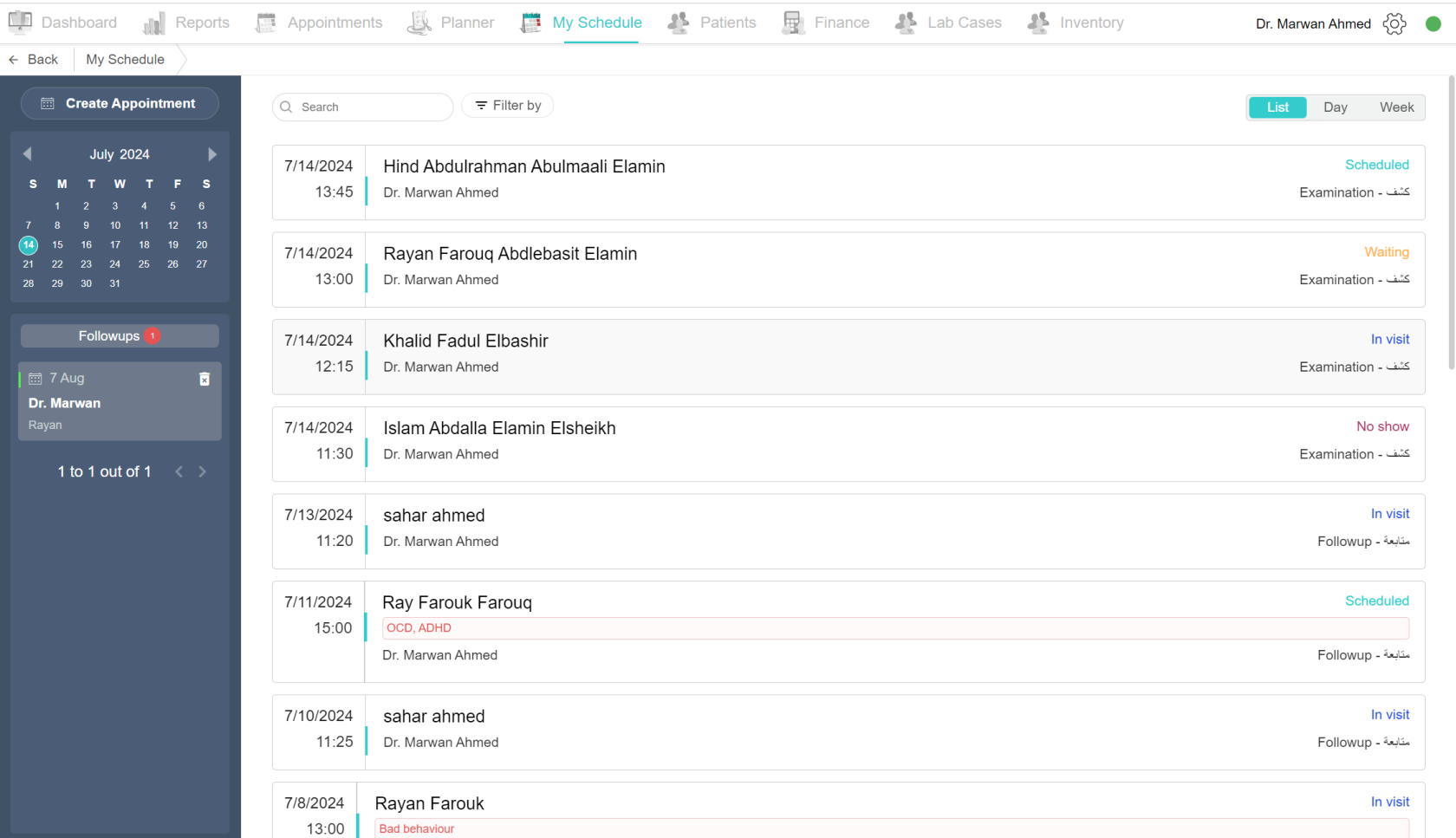
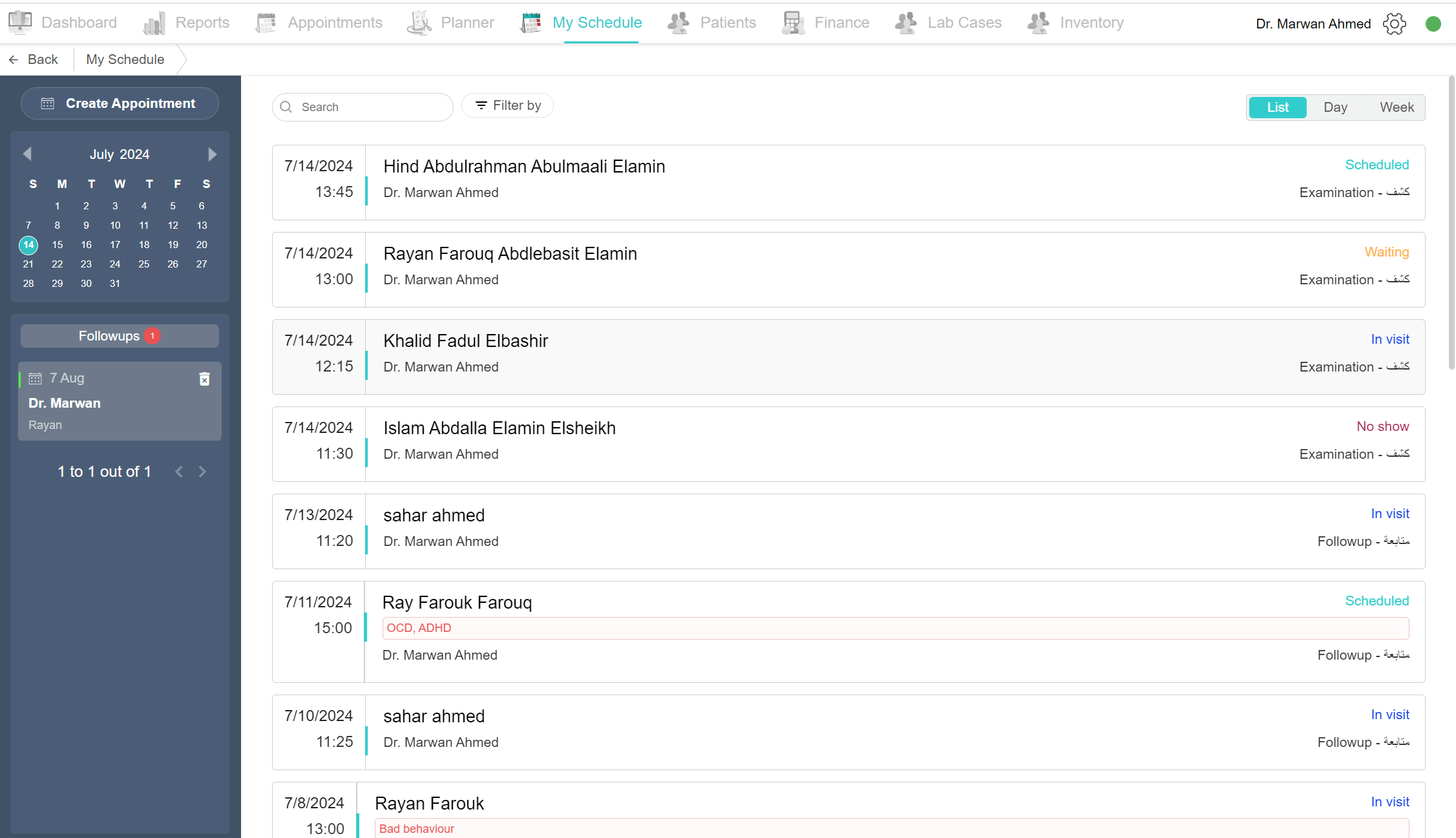
List: If you want to see all appointments from your start date until now, just click on the 'List' button at the top left. You can filter appointments by status or search by patient name.
-
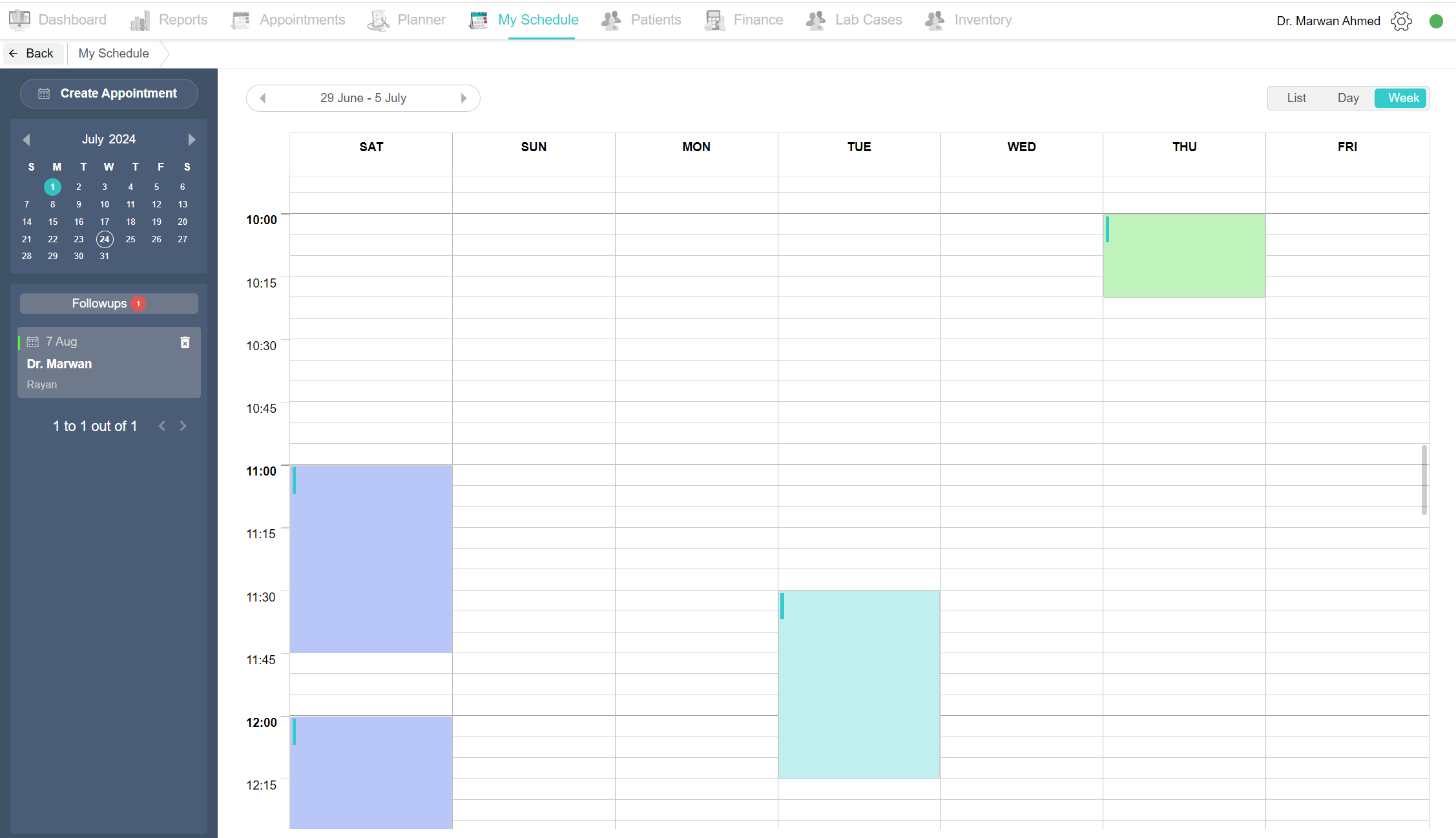
Week: By clicking on the 'Week' button, you can view appointments scheduled for the selected week period.
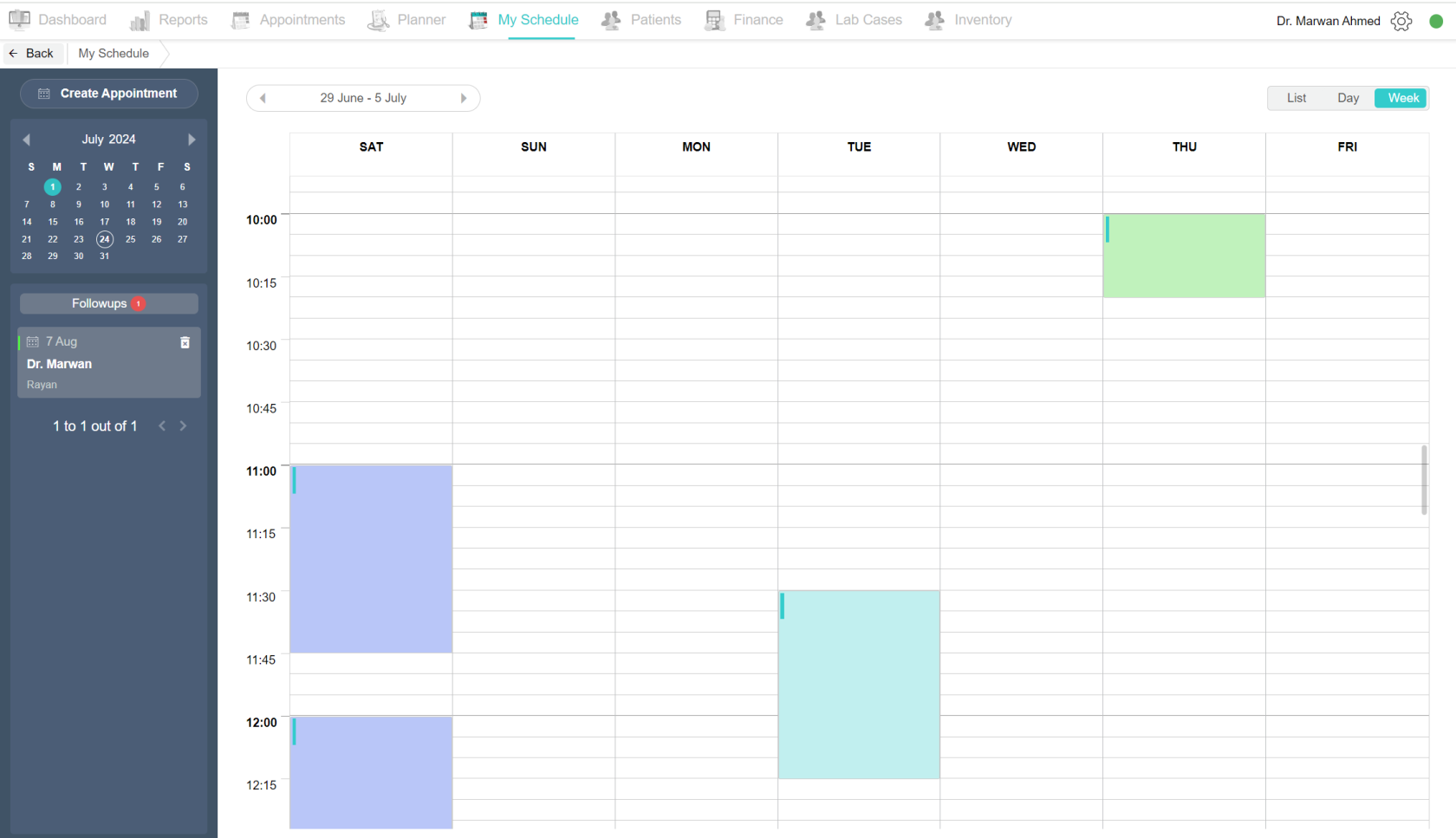
Navigate Dates in My Schedule
Appointments statuses:
1. Scheduled: When the appointment has been made and confirmed by both sides. Indicated by a blue color
2. Waiting: When the patient arrives at the appointment and is in the waiting area of the clinic. Indicated by an orange color
3. Unconfirmed: When the appointment is made but unsure if the patient will commit or not. Indicated by a grey color
4. In visit: When the patient has entered the examination room and has started the visit. Indicated by a purple color
5. Finished: When the visit is complete and the patient has left the examination room. Indicated by a green color
6. No show: When the appointment is made but the patient has not shown up to it. Indicated by a red color
No Comments